Data merge for print
Variable data printing from a spreadsheet
One design, a copy for every row.
Name badges, address labels, numbered tickets, price stickers, personal cards. Design one, import your spreadsheet, and Popcorn Editor makes a copy for every row, barcodes included, ready to print.
CSV, TSV or pasted rows · Label sheets or one page per record · In the browser
The problem
Two hundred badges should not mean two hundred edits.
Copying names into a layout one by one is slow, and every copy is a chance for a typo. With data merge your spreadsheet columns become fields in the design. You step through real records to check the longest name fits, then generate the whole run.
How it works
From spreadsheet to print file
Import your rows
Open Insert ▸ Data merge and pick a .csv, .tsv or .txt file, or paste rows from a spreadsheet. The first row becomes the field names.
Place the fields
Drop «FirstName» or «SKU» into any text, style it like normal text, and bind barcodes and QR codes to a column. Preview real records to check the fit.
Generate the run
Choose a label sheet stepped across SRA3, A3, A4 or US Letter, a PDF with one page per record, or an editable document with a canvas per record.
Every option is in the data merge guide, with a full walkthrough in mail merge labels and cards.
Start from a real layout
Labels and cards ready for a merge
Open one, drop your spreadsheet columns into the text, and generate a copy per row.
 Cold Brew Bottle Wrap Label
Edit this template →
 Shipping Address Label
Edit this template →
 Index Card Studio Duplex
Edit this template →
 Foil Serif Business Card
Edit this template →
 Color-Coded Organizing Label
Edit this template →
 Craft Jar Product Label
Edit this template →
 Color-Field Duplex Business Card
Edit this template →
 Premium Business Card
Edit this template →
Made for production
A merge your printer can run
Label sheets that fill themselves
Auto N-up fits as many copies as the sheet holds, or set rows, columns, gutter and margin yourself. A live line shows what you will get, like 12 sheets at 21-up.
Print settings included
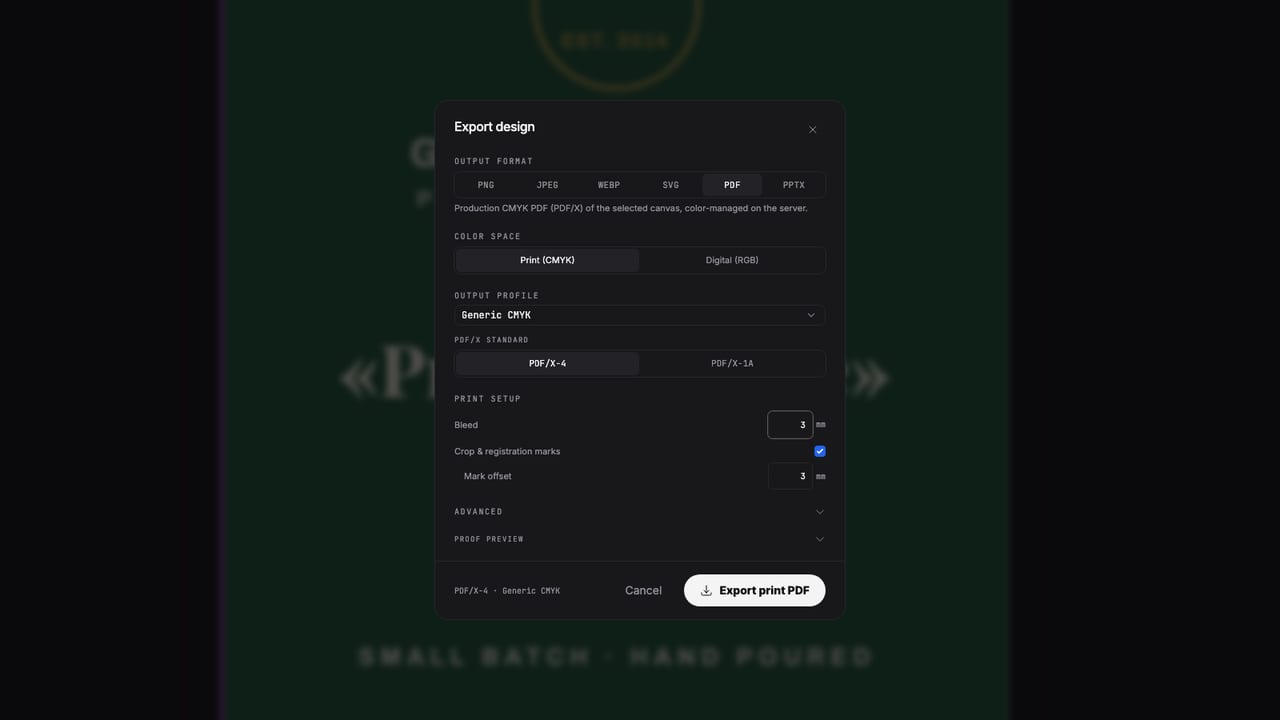
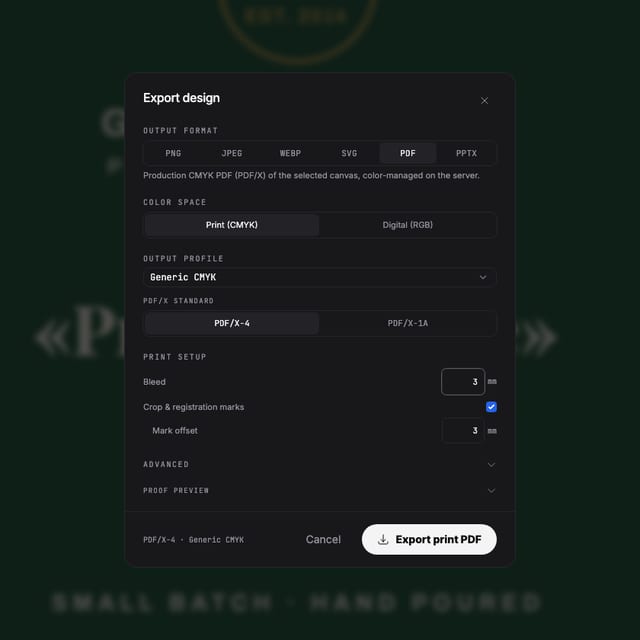
Both PDF outputs take an output profile, a bleed value and crop and registration marks, the same as the standard print export.
Every code is its own
Barcodes and QR codes bound to a column encode each record's value, so serial numbers and links scan per copy.
Your data stays put
Rows live in your browser's storage, not in the design file, and the merge itself runs on your device.
Questions
Data merge questions
Which files can I merge?
A .csv, .tsv or .txt file, or rows pasted straight from a spreadsheet (tab or comma separated). The first row becomes the field names.
Can every copy get its own barcode or QR code?
Yes. Select a barcode or QR code and pick a column under Data field. Each record's value is encoded at merge time, so every copy scans differently.
What do I get at the end?
Three choices: a label sheet with records stepped across SRA3, A3, A4, US Letter or a custom size; a multi-page PDF with one page per record; or a new editable document with one canvas per record.
Are the PDFs ready for a printer?
Both PDF outputs take an output profile, a bleed value and crop and registration marks, the same settings as the standard print export.
Where does my data go?
It stays on your device. The rows are kept in local browser storage, not in the design file, and the merge runs in your browser.
Start now
One design. Every row. Ready to print.
Data merge runs in the browser editor.
Also looking at product label design, print-ready PDFs ?