For product makers & label sellers
The label your product deserves, and your printer accepts.
Design product labels in the browser with spot colors that match your brand, white ink for clear and metallic stock, barcodes that stay vector, and the cut line on its own plate. Export the roll- or sheet-ready file first time.
Free to start · Works with any label printer
The problem
The label looked right, until it hit the substrate.
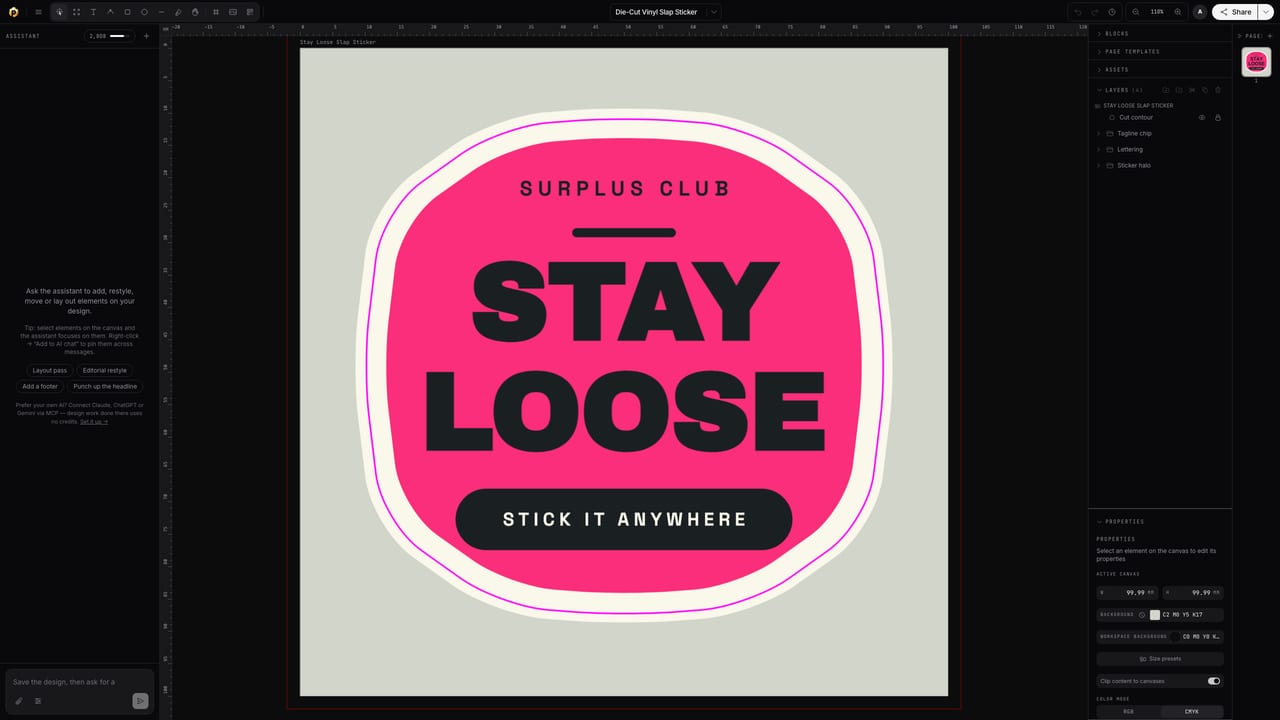
Colors drift on press, art vanishes on clear film without a white backing, barcodes blur, the printer asks for plates your tool can't produce. Popcorn works the way label production does: named spot inks, a real white plate, vector barcodes and a cut contour that stays separate from the artwork.
Made with Popcorn
Start from a real product label
These open straight in the editor. Swap the product name and artwork; the dieline, barcode and color setup are already done.
 Farrow Editorial Numeral Label
Edit this template →
Farrow Editorial Numeral Label
Edit this template →
 Botanical Tonic Wraparound Label
Edit this template →
Botanical Tonic Wraparound Label
Edit this template →
 Cold Brew Bottle Wrap Label
Edit this template →
Cold Brew Bottle Wrap Label
Edit this template →
 Shipping Address Label
Edit this template →
Shipping Address Label
Edit this template →
 Color-Coded Organizing Label
Edit this template →
Color-Coded Organizing Label
Edit this template →
 Craft Jar Product Label
Edit this template →
Craft Jar Product Label
Edit this template →
 Nightjar Overproof Bottle Label
Edit this template →
Nightjar Overproof Bottle Label
Edit this template →
How it works
Artwork to roll-ready file
Start from a label that works
Label templates come with the die shape, bleed and color setup done. Or describe your product and let AI draft the first version, then take over.
Set the inks, not just the colors
Your brand color as a named spot swatch, white ink under the art where the stock needs it, the barcode generated as vectors: every production detail is a first-class object.
Lay out the run, then export
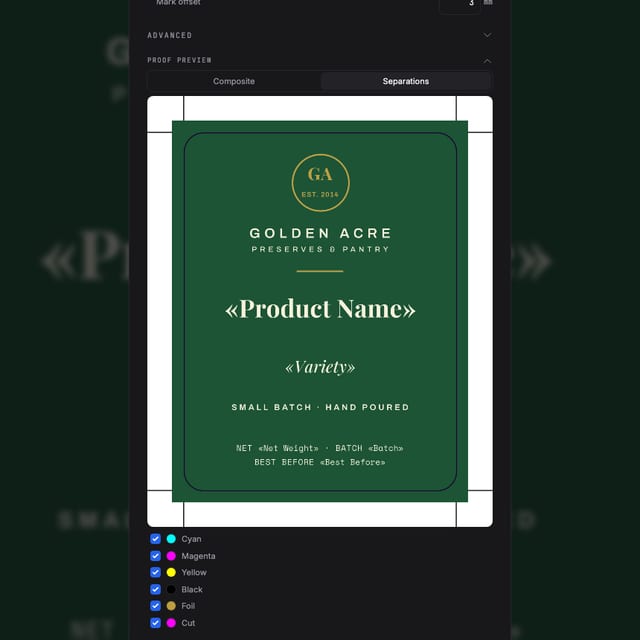
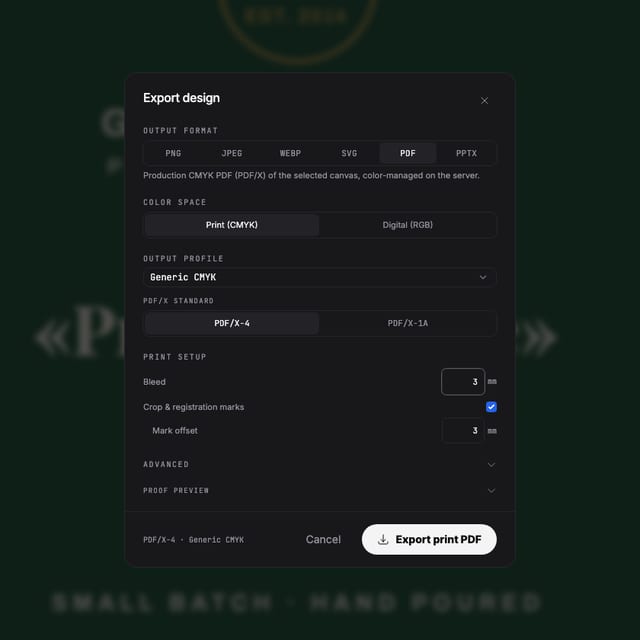
One label or a step-and-repeat production sheet with trim marks, exported as a press-ready PDF with every plate named and separated.
Why files pass
Built for the label press
Brand color as a real spot ink
Named spot swatches with Lab values export as their own separations with tints and overprint, so the label on shelf matches the label on screen.
White ink, on purpose
Apply the White Ink swatch to exactly what needs backing on clear or metallic stock. It exports as a genuine named White plate, and you control the coverage.
Barcodes that scan
EAN, UPC and QR codes generate as vectors, crisp at label scale, printable in any ink, checked by preflight before export.
The cut line stays separate
Die and kiss-cut contours live on named spot plates, never baked into the artwork: the format every label printer keys on.
Questions
Before you send it to the label printer
I'm printing on clear or metallic stock. Can it do white ink?
Yes. Apply the built-in White Ink spot swatch to whatever needs backing, such as an underlay shape, type, or your logo, and it exports as a real, named White plate with overprint set correctly. You decide the coverage; nothing is auto-generated.
My brand color has to match exactly. Spot colors?
Define your brand color as a named spot swatch (with Lab values for accurate proofing) and it exports as its own separation with tints and overprint, the way label presses expect it. You can also import your own color books.
Roll or sheet: how do I lay out for production?
Design one label, then use step-and-repeat imposition to lay out the production sheet with trim marks. The cut contour stays on its own spot plate through the whole flow.
What about barcodes and ingredient text?
Vector barcode and QR generators are built in, sharp at any size, spot-ink capable. Real text tools (styles, columns, small sizes that stay crisp) handle the fine print.
Which file do I send to the label printer?
A press-ready PDF with real CMYK, the cut contour and every spot ink (including white) as separate plates, and PDF/X-4 with ICC profiles when your printer requires it.
Start now
Your next label run, right the first time.
Free to start. Design and export your first label today.
Also looking at die-cut stickers, spot colors, white ink & finishes ?